Showing posts with label tips. Show all posts

Tuesday, October 29, 2013

Safari Favorites Bar - Making the Most of It (Browser Shortcuts Series Part One)

Safari Special Features for Mac Users

If you’re a regular user of multiple browsers like me, you probably know some of the really cool keyboard shortcuts that will save you time.
Anyone who has seen my browser screenshots has probably wonder what the odd bookmark bar links are on my browsers. For example, in this screenshot from Safari for Mac OS X 10.9:

PastedGraphic1-2013-10-29-08-41.png
You can see that I’ve got a collection of bookmarklets, really short bookmark names and even bookmark folders on my Safari bookmarks bar (now called the Favorites Bar, by the way).
Let’s explore some of these in detail in Part One of this series on browser shortcuts.

PastedGraphic2-2013-10-29-08-41.png

The Sidebar

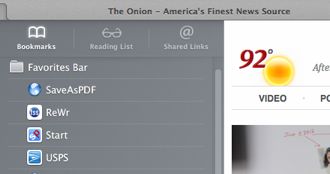
First, we have the bookmarks/reading list/shared links button. Clicking it opens the following sidebar:
PastedGraphic3-2013-10-29-08-41.png

You can choose from the Bookmarks, which actually lets you drill down into any of your bookmarks, not just the Favorites Bar. Next is the Reading List, a place for you to cache pages for offline reading later that will sync across iCloud to all of your devices running the latest Mac OS X and iOS operating systems. Here’s mine:

PastedGraphic4-2013-10-29-08-41.png

Finally is the Shared Links tab, a collection of links posted by your Twitter friends, if you have Twitter integration turned on for your Mac.

PastedGraphic5-2013-10-29-08-41.png

Top Sites

Next on our trip across the Favorites Bar, the little icon that looks like a grid of boxes:

PastedGraphic6-2013-10-29-08-41.png

Clicking this icon opens the Top Sites page in Safari, something that many people will see when they open a new tab or window (if they have Safari configured as such):

PastedGraphic7-2013-10-29-08-41.png

Top Sites is built around your most frequently-visited pages. You can right-click on any page image to delete it and the grid will get another page added to make the total number of pages match the number you have set for Top Sites on the General tab of Safari’s preferences. You can also right-click and choose the pin icon to make a page stay in Top Sites regardless of the frequency you visit it. Blue pin means “pushed” and gray pin means not pushed (not selected). Pressing CMD + R will reload all of the top sites’ page content in this view.

Bookmarklets

The next button is SaveAsPDF. The reason I frequently leave spaces out or heavily abbreviate words in these Favorites Bar items is that I want to make maximum use of the Favorites Bar real estate. One type of bookmark that has been popular since the early evolution of JavaScript is called a bookmarklet. Here is a great article from the folks at lifehacker showing how to add bookmarklets to iOS devices. This is very helpful since Safari on iOS doesn’t support extensions!

The bookmarklet “SaveAsPDF” is actually for iOS, since printing to PDF is a built-in function in Mac OS X anyway. If you have a task that is repetitive or one that would normally require a browser add-in, extension or other special plug-in, you might find a solution via bookmarklet and that is extra handy if you put it on the Favorites Bar where it is a click OR shortcut key away from action.

Wait, did I just say shortcut key? I’m glad you asked! Yes I did. Let’s continue on by skipping the ReWr link (it’s a custom link for a client’s Magento system that would bore you to read about).

Shortcut Keys for the Favorites Bar

Built into Safari is a cool way to get to the first shortcuts on your Favorites Bar. Starting after the sidebar and Top Sites icons, each of the next nine (9) bookmarks can be accessed by pressing CMD + the number. Let’s look at my Favorites Bar again.

PastedGraphic8-2013-10-29-08-41.png

So, using this system, we can see that CMD (⌘) symbol plus the following numbers gives us:
  1. SaveAsPDF (bookmarklet for iOS devices, I sync my bookmarks across all Macs, my iPad and iPhone)
  2. ReWr (again, this is a shortcut for rapid entry of Magento changes for a client of mine)
  3. Start (StartPage.com the world’s most private search engine)
  4. USPS (Postage Price Calculator, perfect for my eBay business)
  5. Tw (Twitter homepage)
  6. CNN (Cable News Network)
  7. BLN (Blacklisted News, usually carries the actual news as opposed to the filtered CNN news. Note: beware of ads for survivalist stuff LOL)
So, pressing ⌘ + 4 on my Safari jumps straight to the United States Postal Service Postage Price Calculator. A little easier than moving a mouse to click and a lot easier than moving a mouse to go to the bookmarks menu.

All Safari Keyboard Shortcuts

For users still on Mountain Lion or earlier releases of Safari, use the appropriate link below to give the shortcut list for your version.

Safari Shortcuts for iOS 7

Enjoy your browsing and be sure to check out my Apple blog, Knowing Apple... Tips, Tricks, News and Information if Apple is your platform of choice!

Other Links:

Mavericks Feature Focus: Safari 7 and iCloud Keychain
58 Useful Keyboard Shortcuts for Safari


Tuesday, July 2, 2013

Coding Help - Nacodes.com

I get asked (pretty often): “How did you learn to do what you do with computers?”

Unfortunately, I don’t have an easy answer. I’m 42, and I started writing code at about 8 - by the time the IBM-PC (with the original 4.77 hz 8088 CPU) came out, I was writing assembly language and pretty well versed on looking at a problem and intuitively finding a solution. Similarly, I picked up SQL between 1998-2002 on the job implementing software deployments - first for a hotel chain/property management company and later for dot com clients putting CRM solutions in place. I can’t explain how the stuff in my brain got there or point to a single resource (well, actually, after the fact I found a great resource - I’ll share it below).

That doesn’t mean you can pick up skills easily too. As pointed out in my blog about low-cost (and free) online education resources, there are plenty of semi-format training programs. I’ve recently been going through the Web Fundamentals course track on Codecademy just to brush up on my skills -- I’m launching my business website again so I can more easily provide ebooks and other solutions to clients rather than relying solely on word of mouth referrals.

Another great learning experience is to simply find examples of what you want to do and learn by doing. That is what the fine contributors over at Nacodes.com do for web design.

Here are some recent posts on the site:

Mobile-Friendly And Responsive Expanding Search Bar

MbND4Yj.png

39 Powerful CSS Tools And Generators

BfcENmy.png

Nifty Modal Window Effects

XOBymyQ.png

jQuery Plugin Adds Handy Tooltips To Your Images

hA10Ibe.png

OAuth Login for Facebook, Google and More

hjJMuur.png

As mentioned above, I did find a great resource for my particular area of greatest expertise: database architecture and enterprise reporting/analytics. An author named Joe Celko really does a fine job of explaining the difference between databases and traditional linear programming. In the programming classes most younger people have had in high school or college, programs were written in a linear fashion to act on input or data one item at a time. Joe boils down the reasons why for databases, and particularly those using SQL (structured query language), this is insane.

You see, SQL is designed to act on data in sets. For example, in a traditional program, we might search through a list of students to find which ones had a certain GPA (or above), then add them to a list or output to the screen or a report. This would be a loop of some sort and at least a chunk of code. The same thing in SQL could be done with one line, as we’d simply ask the database to give us all of the students based on a certain criteria in one step. While you might think the database server is simply recreating the steps of the loop on the server, saving us coding time, the truth is far more complex than that. SQL is optimized to act on sets and doesn’t have to approach the issue linearly.

Let me put it another way: if you or your business use any database software and anything you do takes more than a to pull up a screen or more than a few minutes for a report, your SQL is not optimized. I’ve taken reports that took literally 12 or more hours to run and with a handful of code changes (less than 200 characters of code, maybe 3 or 4 lines impacted), made those reports run in a few minutes.

You can get books by Joe Celko at Amazon.

I suggest starting with Joe Celko's Thinking in Sets: Auxiliary, Temporal, and Virtual Tables in SQL (The Morgan Kaufmann Series in Data Management Systems)